Two classic HubSpot screens, rebuilt
Each copy is checked pixel by pixel against an archived HubSpot Knowledge Base screenshot, and it works: open one and click around. The dark version is ours, made only from HubSpot colours, because classic HubSpot never had a dark mode.
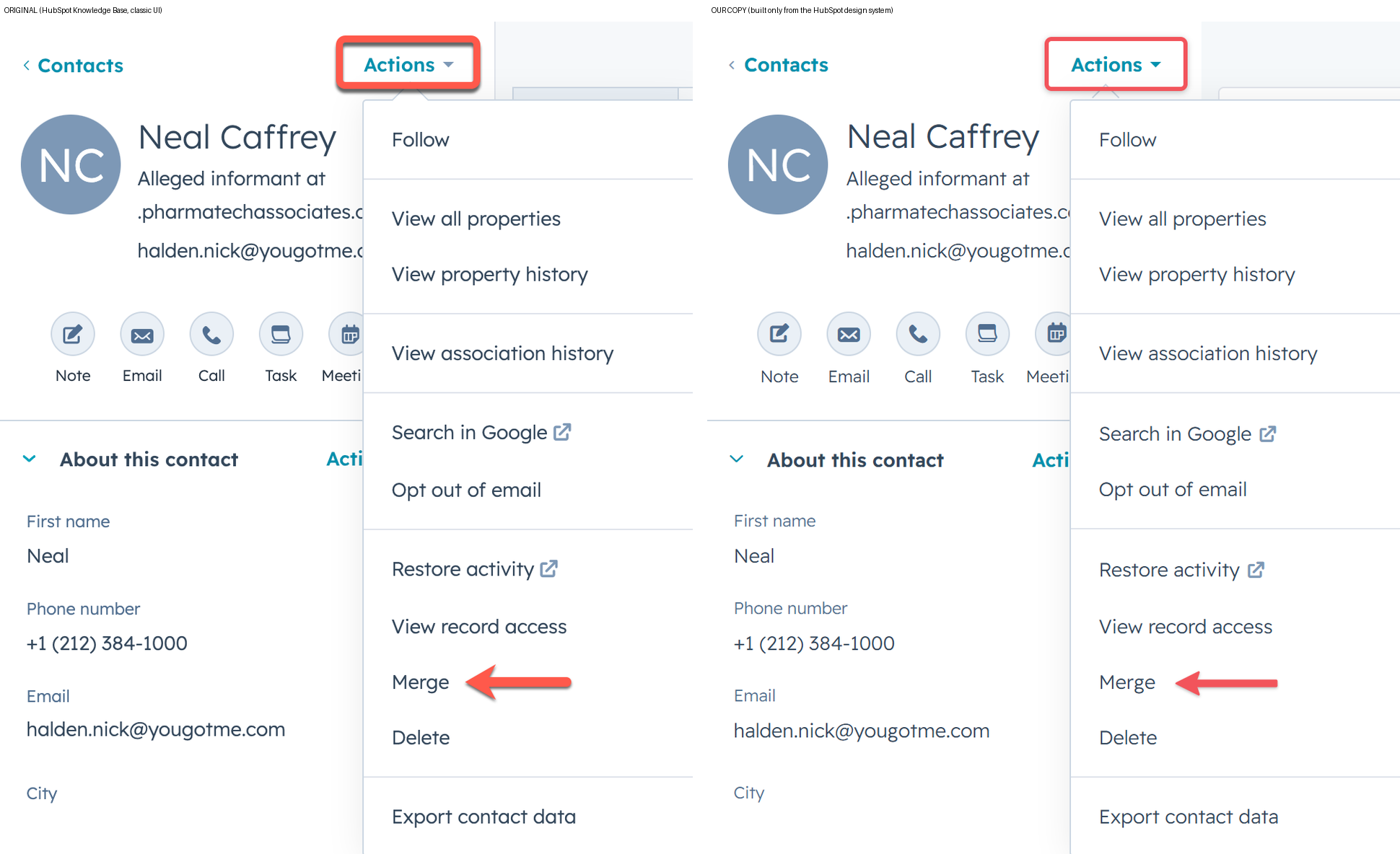
Contact record with the Actions menu
92.0% pixel match Original: HubSpot Knowledge Base, "merge records" (archived), 499 × 600 at 2x · 10 compare rounds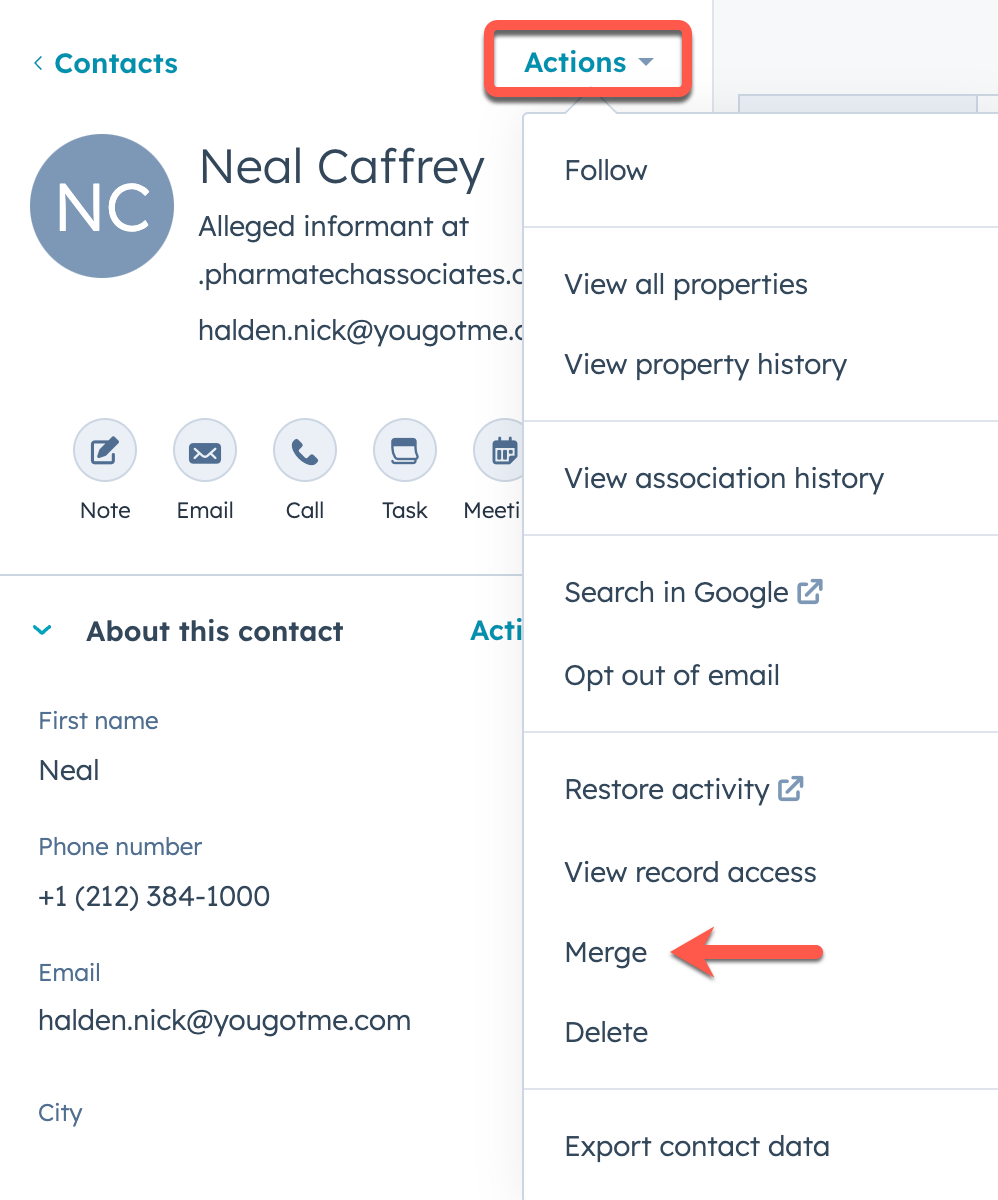
What you can try
- Open and close Actions; every item does something
- Merge and Delete open HubSpot's modal
- Follow turns into Unfollow
- Note, Email, Call, Task, Meeting open the activity box
- Fold About this contact
- Click a property value to edit it
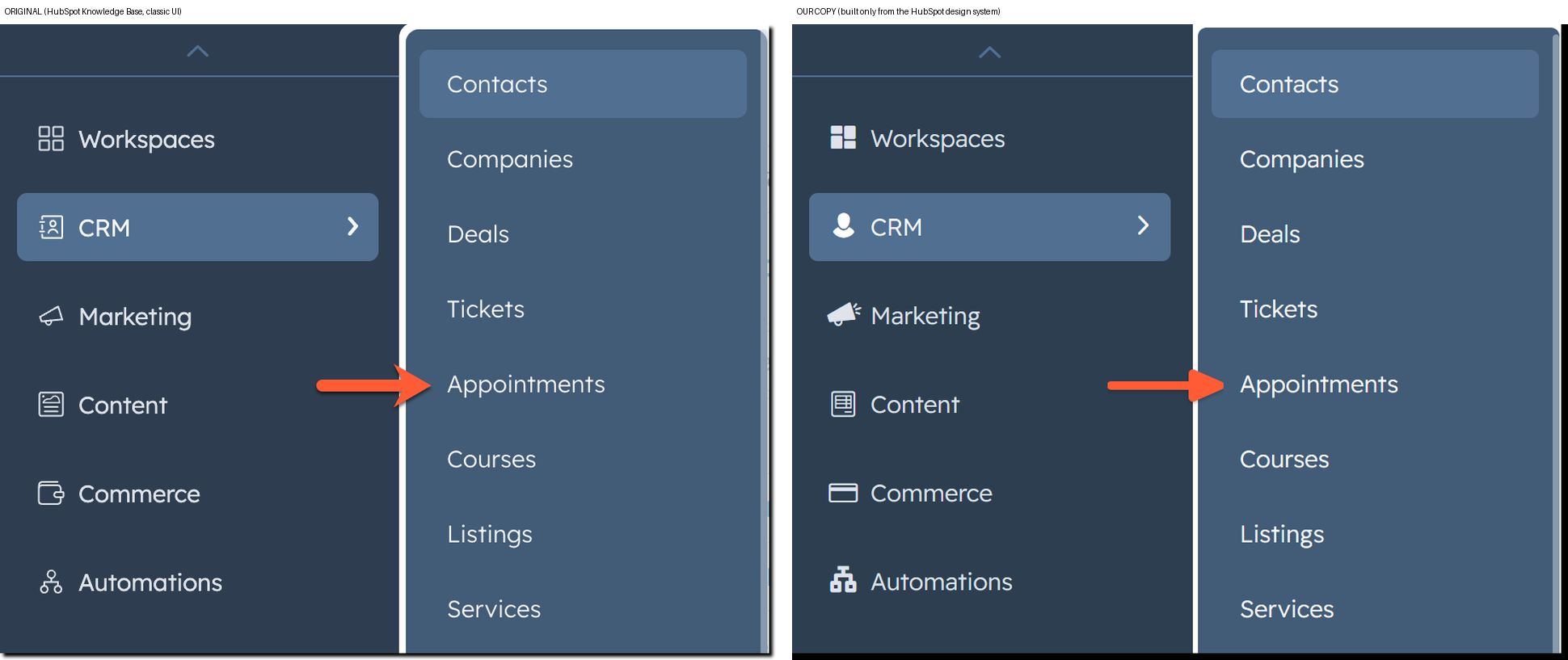
Left navigation with the CRM menu
92.2% pixel match Original: HubSpot Knowledge Base, "navigate new objects" (archived), 455 × 373 at 2x · 4 compare rounds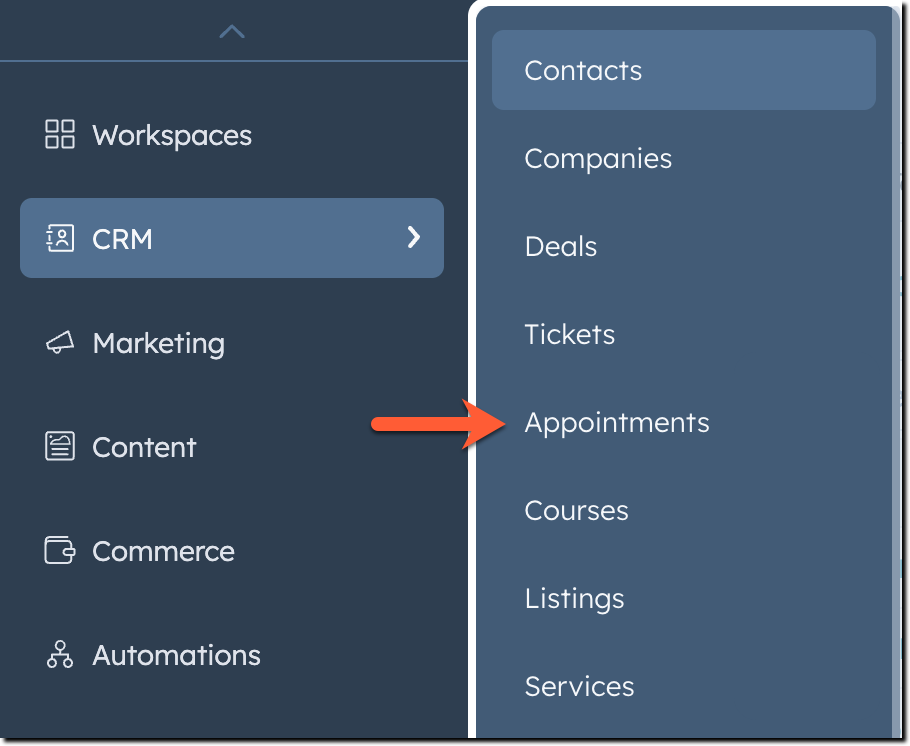
What you can try
- Pick Marketing, Content and the rest: the menu beside it changes
- Pick a menu item to select it
- Keyboard: Up/Down, Right into the menu, Left back
- Hover any row for HubSpot's hover colour
Deals board view (Kanban)
90.3% pixels · 89.4% edges Original: HubSpot Knowledge Base recording "navigate-board-view-1" (Feb 2024), frame 57, 1188 × 662 at 1x, a 256-colour animation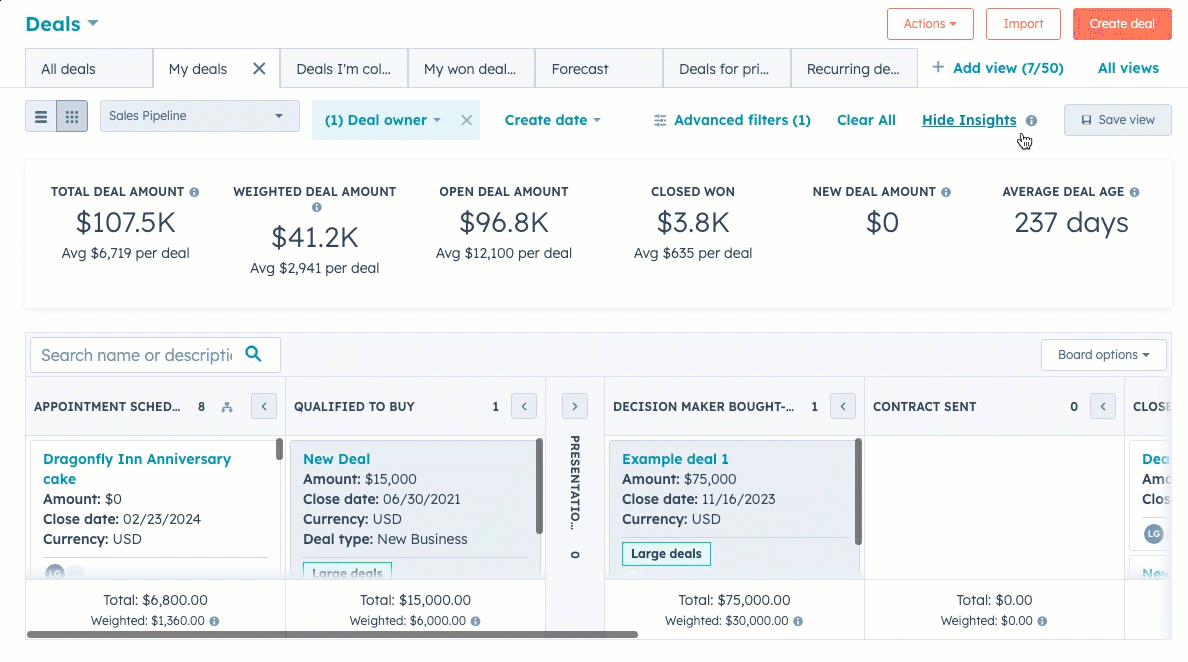
What you can try
- Drag a card to another stage, or focus it and press Left/Right: counts, totals, weighted totals and insights update
- Move a deal to Contract sent: HubSpot asks for the required "Next step" first
- Point at a card and tick it: the bulk bar (Assign, Edit, Delete, Create tasks)
- Click a card for the preview panel; fold a stage with its arrow; switch pipeline, tab, filters, list / board
- Board options: sort, compact cards, tags, activity, totals at the top, and "AltLeads adjustments" (ours)
Tickets board view
92.2% pixels · 80.6% edges Original: HubSpot Knowledge Base recording "move-stage-or-status.gif" (Sep 2023), frame 0, 1034 × 623 at 1x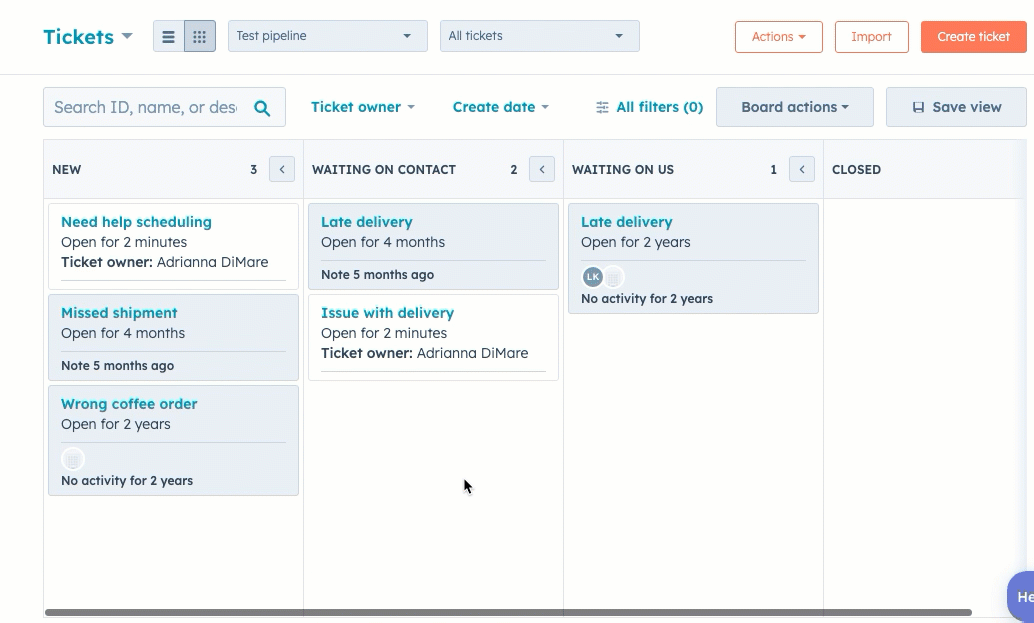
What you can try
- Drag a ticket to another status, or focus it and press Left/Right
- Point at a card and tick it: Assign, Close tickets, Delete
- Click a card for the preview; fold a status; switch pipeline; Board actions; list / board
Redesigned board (2025-26 new look)
89.4% pixels · names made up Original: your HubSpot beta screenshot (12 Oct 2026), 1903 × 1012 at 100%. Real client names there; made-up names in the copy.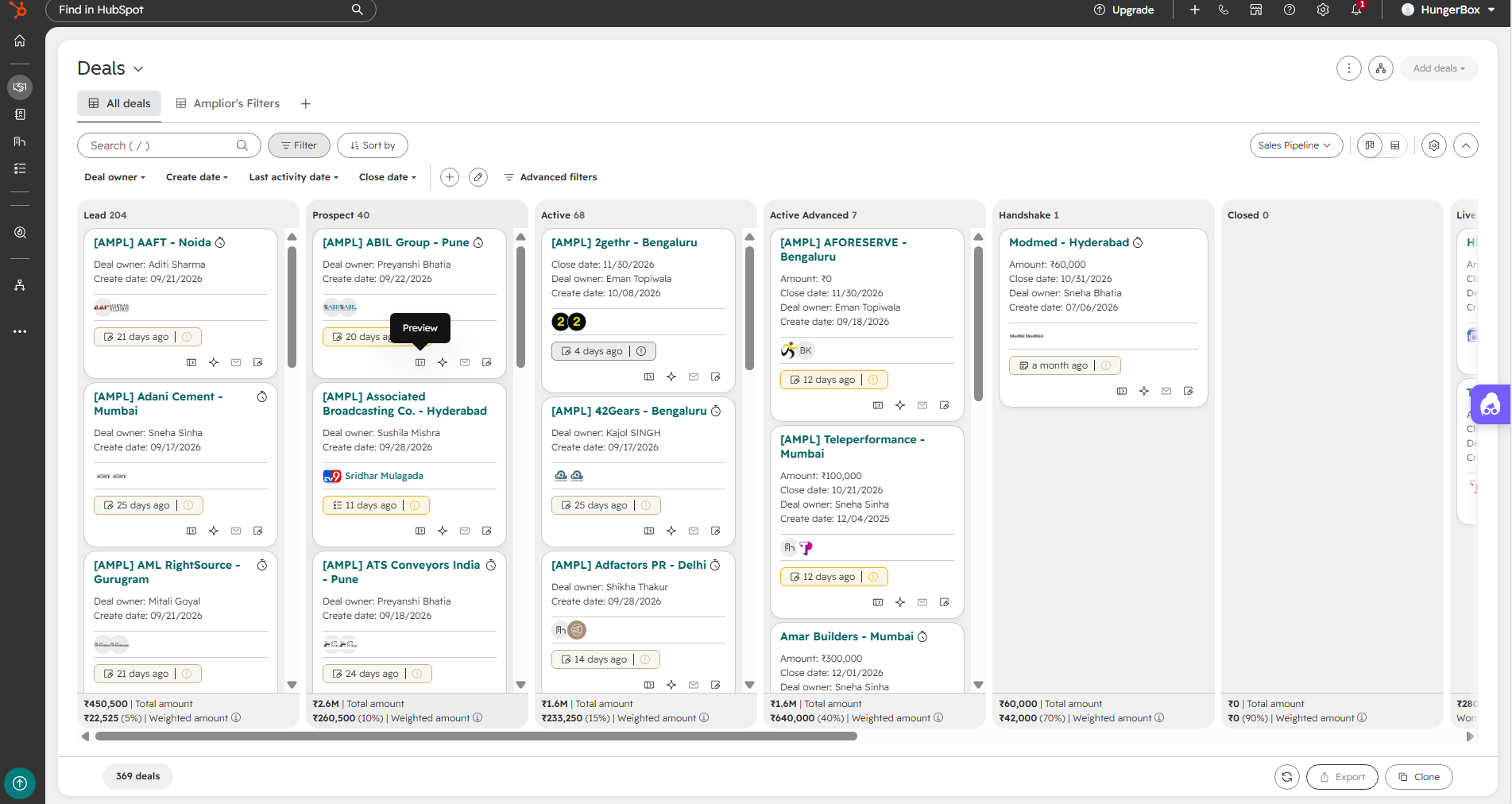
What you can try
- Point at any icon for its hint (Preview, Summary, Email, Create a note, timer, toolbar)
- Click the activity pill: previous and next activity, one-click Note / Email / Call / Task / Meeting
- Preview, Summary, Email, Note open the side panel; a saved note turns the pill into "just now"
- Drag a deal or press Left/Right: totals and weighted amounts recount
- Search ( / ), Deal owner, Sort by, pipeline, table view, collapse header
Opened on its own in a big window, every copy shows a small bar at the bottom: Light / Dark, Screenshot marks (hides the red boxes and arrows drawn on HubSpot's screenshot), and Compare with original (drag the line to wipe between our copy and the screenshot). Keys: D dark, M marks, C compare.